Organise your ChatGPT projects, locally.

GPTool gives you search, sorting, folders, and a keyboard-friendly launcher for ChatGPT Projects, while keeping your project organisation on your own machine.

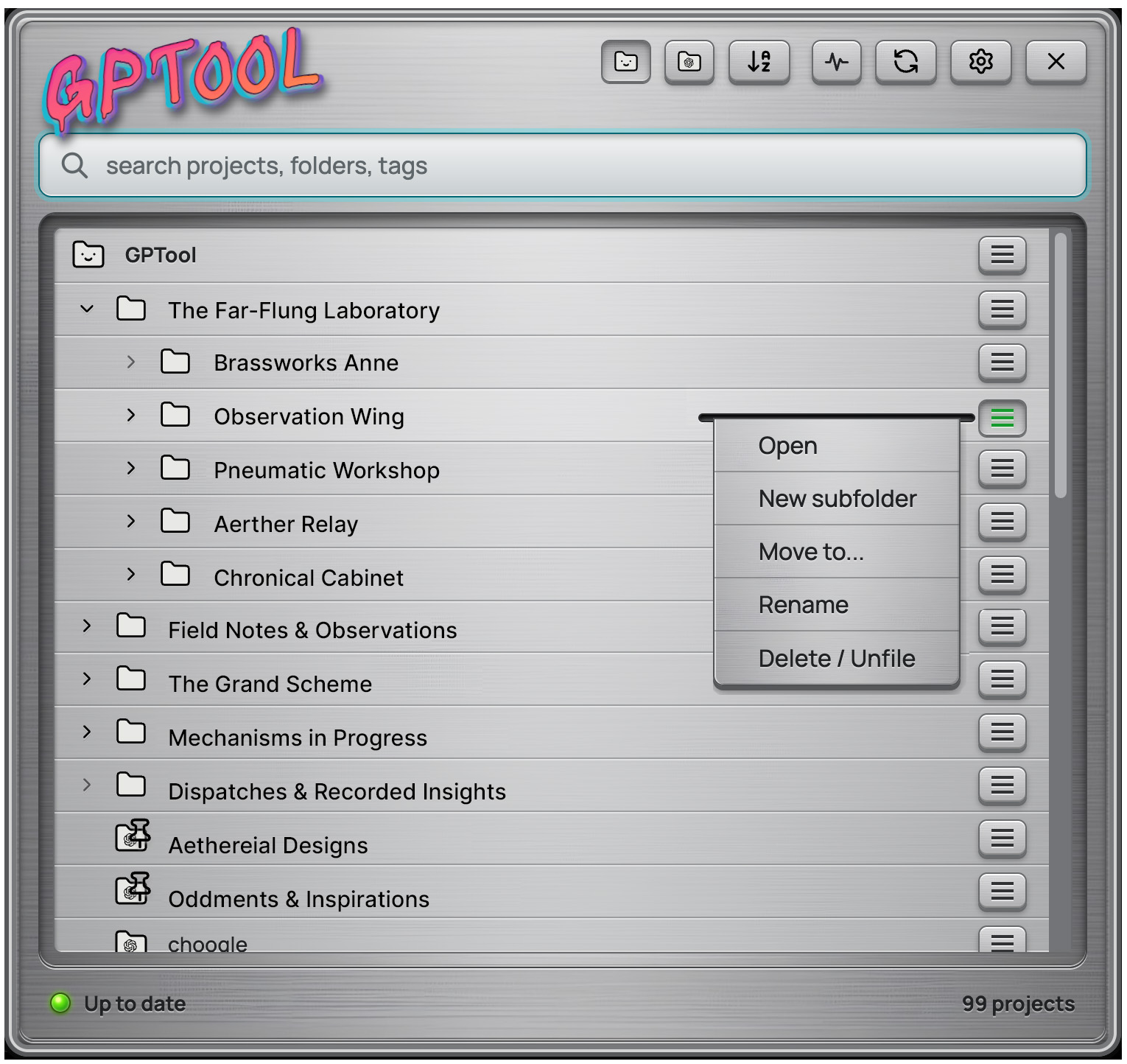
GPTool interface showing a search bar, project folders, menus, and toolbar actions in the extension panel.
Open source No account needed Your data on your machine Free (as in beer)

A simple tool for keeping projects organised.

I built GPTool because I had too many ChatGPT Projects and the sidebar had stopped being enough. It helps you search, sort, and organise your projects locally, without adding another account, another sync layer, or another place to work. It’s a small tool for getting back to the right project faster. Here’s how it works:

01

Collect what’s already there

GPTool reads the ChatGPT Projects list from the page you already have open. It doesn’t create, edit, or delete anything inside ChatGPT. It simply keeps a local snapshot so your projects are easier to find from the extension.

03

Organise it locally

Once GPTool has a local snapshot, you can organise your projects in a way that makes sense to you. Use folders, Unfiled projects, and project assignments without changing the project data inside ChatGPT.

How to use it

02

Search and sort

Find the project you need without scrolling through the sidebar. Search by name or keyword, then sort your projects by latest, oldest, A–Z, or Z–A.

Privacy & Security

Your projects stay yours.

  • Your organisation data is stored in Chrome browser storage, on your machine..
  • No accounts. No remote sync. No service sitting behind it.
  • Reads your project list and gives you an organisation layer on top. Doesn't send messages, create projects, delete projects, or pretend to be an agent.
  • Open source. Don’t take my word for it: download it, look at the code, and run it locally.

Keyboard-friendly.

Right away, I noticed that my hands wanted keyboard navigation. So GPTool has it.

You can open the panel from the keyboard, move through the main controls predictably, see where focus is, and reach the menus without needing a mouse.

Accessibility is a project goal. The first pass is keyboard-first: predictable controls, visible focus, and a usable path through the extension without needing a mouse. We’ll see what needs tightening from there.

Launcher and panel

Quickly open GPTool from the always-available in-browser launcher or a keyboard shortcut. However you open it, the panel works the same way.

Rows and menus

Folders, projects, disclosure controls, and row menus can all be reached from the keyboard. You can open, move, sort, and manage projects without needing to switch to the mouse.

What's missing & what's next.

For now, GPTool is focused on projects and organisation: finding things, sorting them, and putting them somewhere sensible.

Conversations aren’t in this first version because they need a different model. Projects already give most AI tools a useful organising unit; conversations probably need tags, better metadata, and more care before they become useful to browse at scale.

That also means the idea can travel. Claude has projects too. Gemini doesn’t, so it would need a different approach. Cross-chatbot organisation is possible, but the project layer comes first.

AI-driven features, like summaries or automatic organisation, could come later. But honestly, I’m still hoping the platforms fix the basics and make this tool unnecessary.
Install GPTool

Two ways to install

Easiest

Chrome Web Store

GPTool is available through the Chrome Web Store. This is the simplest install path for most users.

Go to Chrome Web Store

Manual setup

Install from source

You can also install GPTool locally from the project ZIP. This takes a few extra steps, but it gives you the source-based setup if you're really worried about security.

Before you start

  1. Download the latest GPTool ZIP from the Git repository.
  2. Unzip the file on your computer.

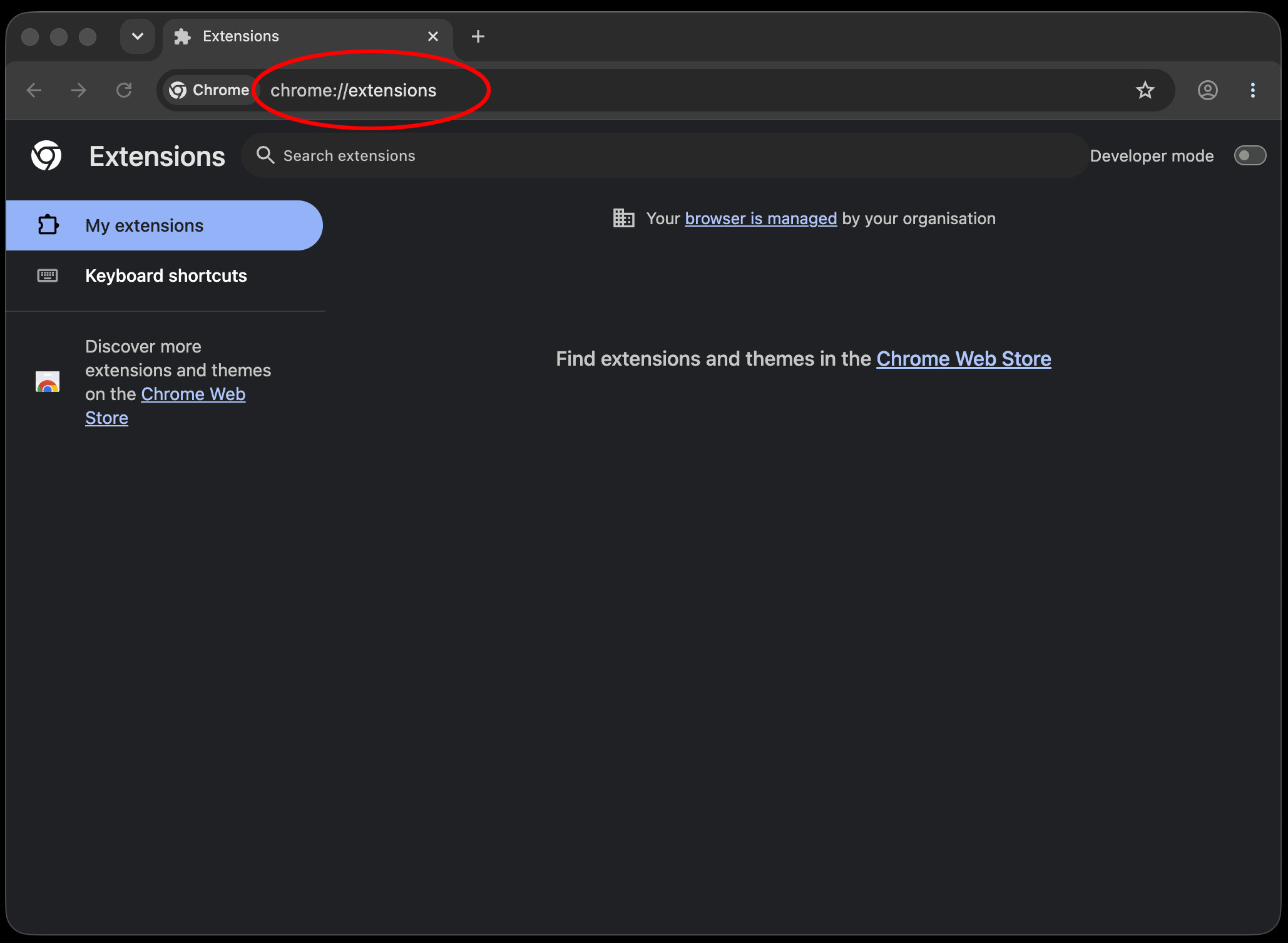
3. Open Chrome and go to chrome://extensions.

Chrome open on the extensions page with chrome://extensions highlighted in the address bar.

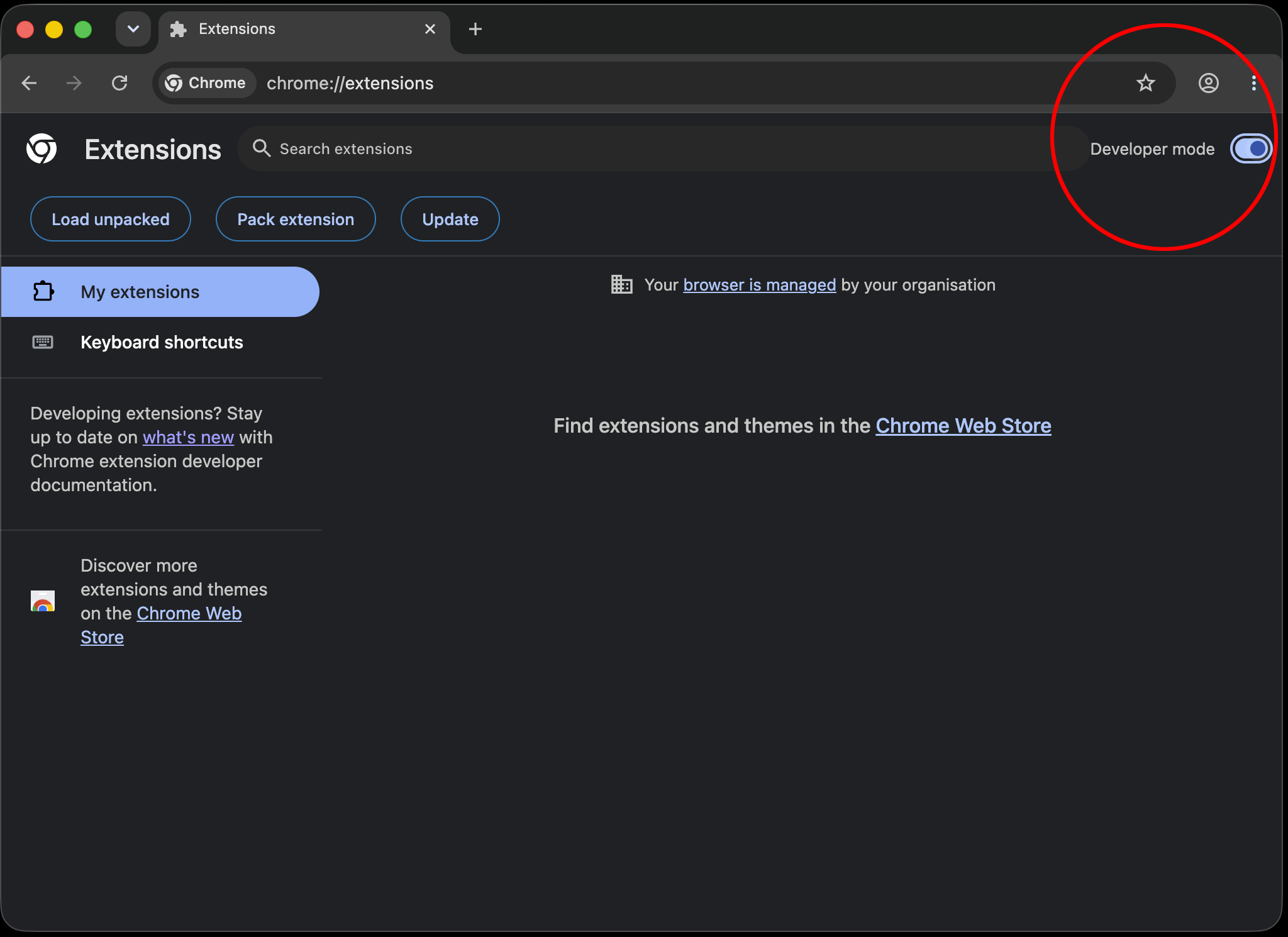
4. Turn on Developer mode.

Chrome extensions page with Developer mode highlighted in the top-right corner.

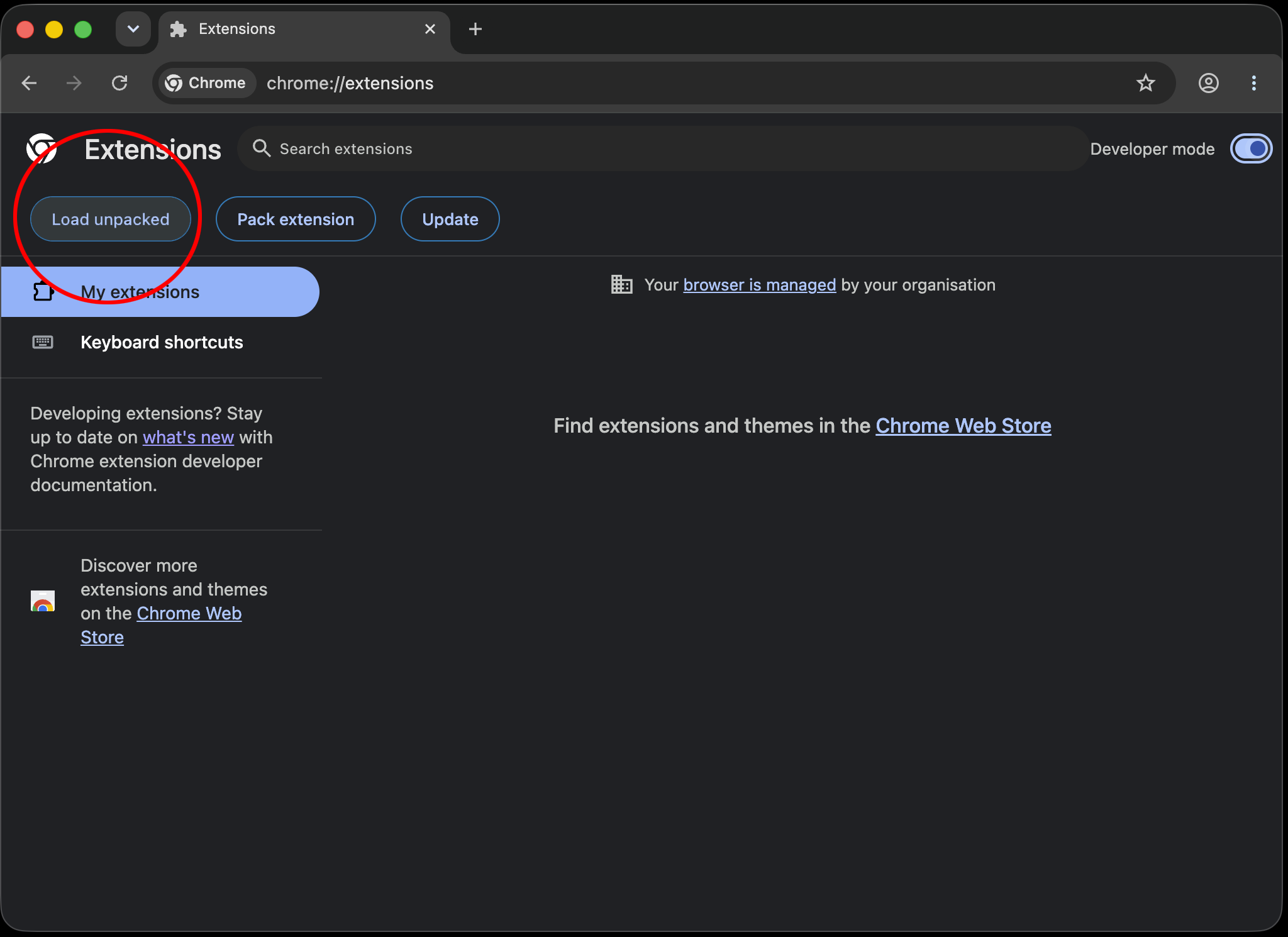
5. Click Load unpacked.

Chrome extensions page with the Load unpacked button highlighted.

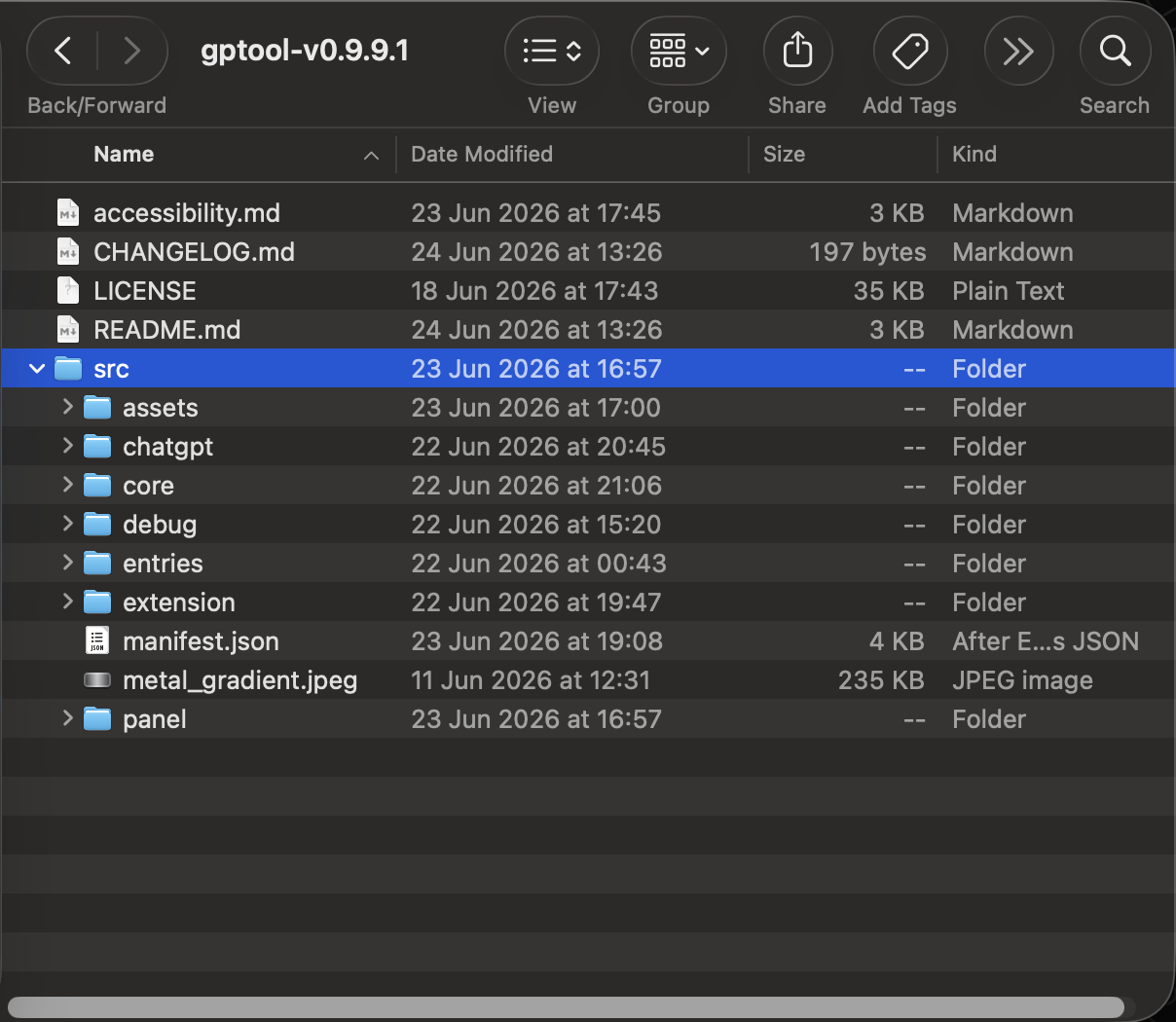
6. Open the unzipped GPTool folder and select the folder:src. (It contains the manifest file: manifest.json).

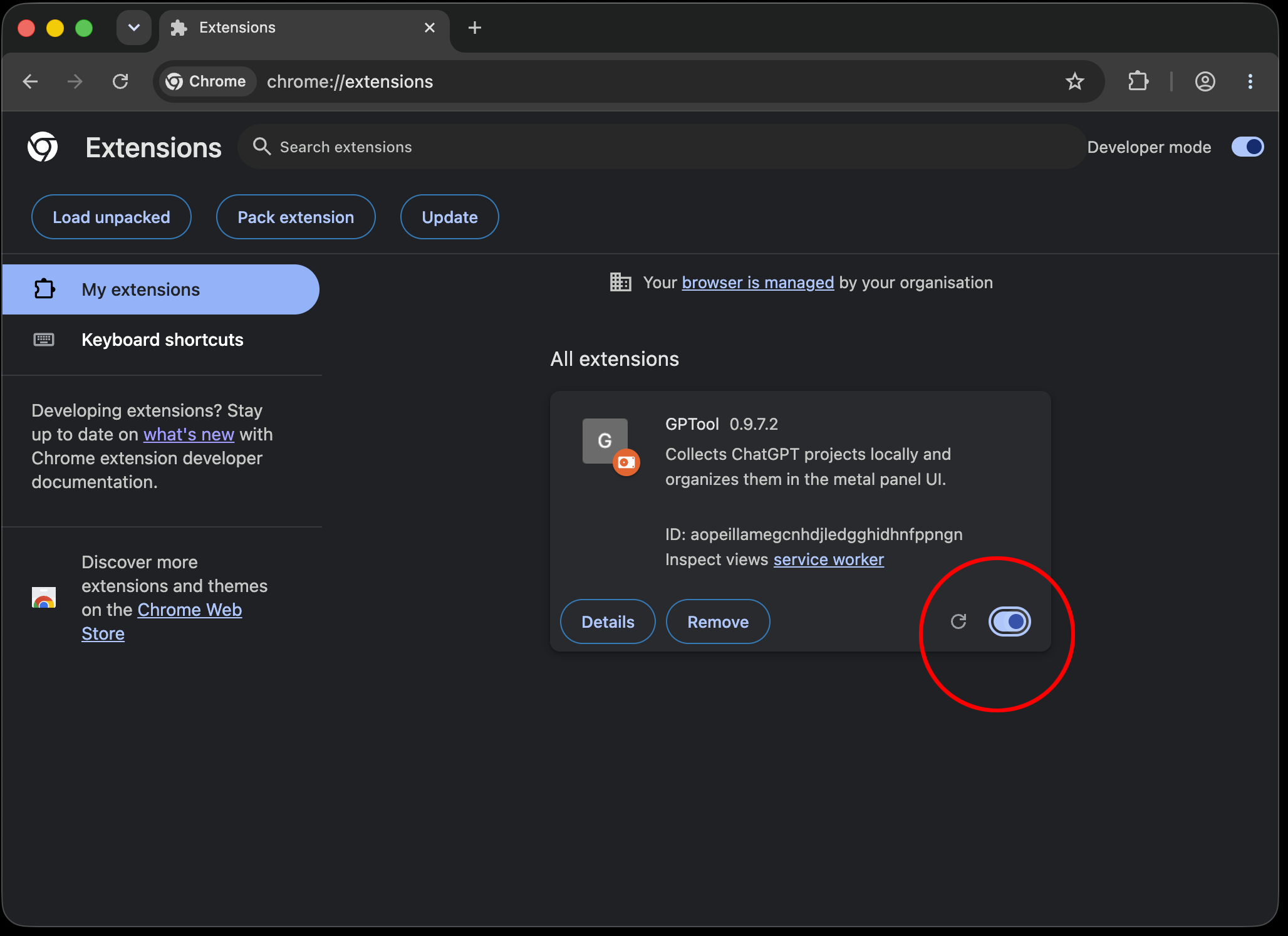
GPTool shown in the Chrome extensions list with the enabled toggle highlighted.

Then confirm GPTool is loaded and enabled.

GPTool shown in the Chrome extensions list with the enabled toggle highlighted.

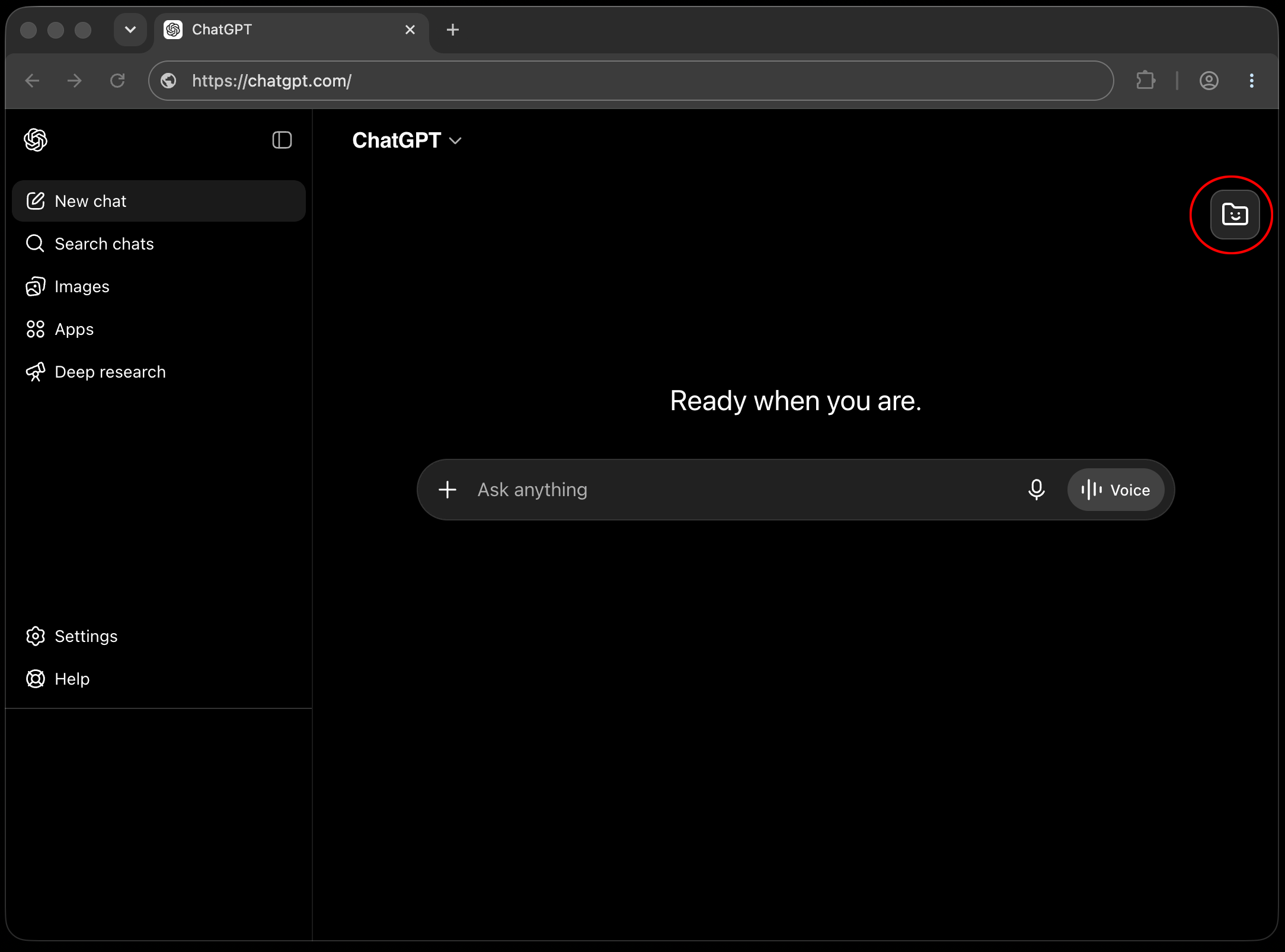
7. Open ChatGPT, then click the GPTool icon in the top-right Chrome toolbar.

ChatGPT page with the GPTool launcher button highlighted on the right side.

Tip: if you do not see the GPTool icon, click Chrome’s extensions puzzle icon and pin GPTool to your toolbar. Then open the manual for a quick walkthrough.